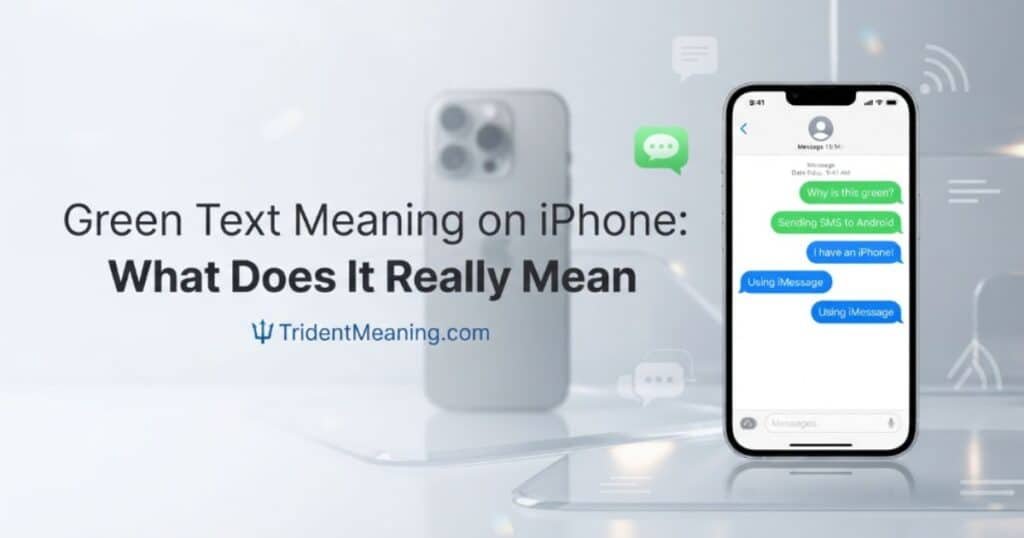

If you’re wondering about the green text meaning on iPhone, the answer is usually related to how your message was sent. Green bubbles can appear when your iPhone uses RCS, SMS, or MMS instead of Apple’s iMessage service. This can make you ask, why are my messages green when they were blue before?
You may also wonder, why are my texts green when messaging someone who uses an iPhone. In some cases, iMessage may be turned off, unavailable, or not properly activated. That can also explain why are my iMessages green or why are my messages green on iPhone.
In this guide, you’ll learn what green bubbles mean, why they appear, and how they differ from blue messages. We’ll also explain why are my messages green when they should be blue and what you can check to fix the issue.
What Does Green Text Mean on iPhone?
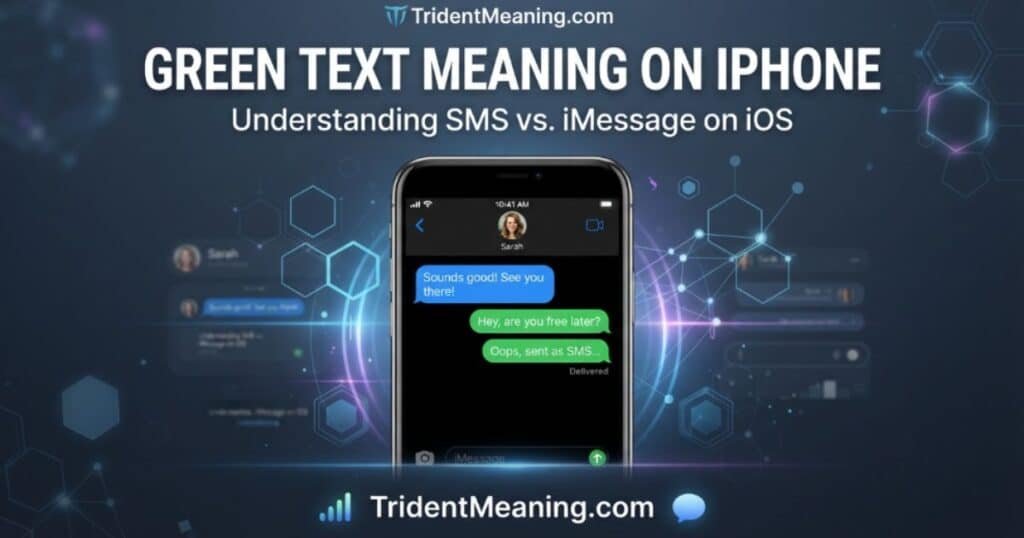
The green text meaning on iPhone is usually connected to the messaging service your iPhone uses to send a message. When a message appears in a green bubble, it means the message was sent using RCS or MMS/SMS rather than iMessage. Apple uses blue bubbles for messages sent through iMessage.
This can happen for several reasons. The person you’re messaging may not have an Apple device, iMessage may be turned off on either device, or iMessage may be temporarily unavailable. Your Messages settings may also need an update after setting up a new iPhone.
Green Text Means the Message Was Sent as SMS or MMS
A green message bubble means your message was not sent through iMessage. Depending on your settings and the recipient’s device or service, your iPhone may send it using RCS or MMS/SMS instead.
For example, if you message someone who does not use an Apple device, the conversation can appear green. The same can happen when iMessage is disabled or temporarily unavailable. Green does not automatically mean something is wrong with your iPhone.
Green vs. Blue Text Messages on iPhone
The main difference between green and blue messages is the messaging service used to send them. Blue bubbles indicate iMessage, while green bubbles indicate RCS or MMS/SMS.
iMessage is Apple’s messaging service and works when it is available and enabled for the conversation. Green messages use a different messaging method, so their appearance does not mean the message is necessarily undelivered.
Does a Green Text Mean You Were Blocked?
No. A green text alone does not confirm that someone blocked you. There are several normal reasons for a message to appear green, including an iMessage setting being turned off or the service being temporarily unavailable.
If you notice that a conversation changed from blue to green, check your iMessage settings and connection first. The bubble color tells you how the message was sent; it does not by itself tell you whether someone has blocked you.
Why Are My iPhone Messages Green Instead of Blue?
If you’re asking why are my messages green on iPhone instead of blue, the reason is usually that the message was sent through RCS or SMS/MMS rather than iMessage. Blue bubbles are used for iMessage conversations, while green bubbles indicate another messaging method.
Several things can cause this change. iMessage may be disabled, unavailable, or not properly activated. The recipient may also not be using iMessage. Checking your Messages settings can help identify what is happening.
iMessage Is Turned Off
When iMessage is turned off on your iPhone, messages that would normally use iMessage may be sent through another available messaging service. This causes the messages to appear in green bubbles.
To check it, open Settings, tap Apps, select Messages, and make sure iMessage is turned on. If you recently changed devices or settings, you may also need to review your Send & Receive options.
The Recipient Is Not Using iMessage
Your messages can appear green when the recipient does not have an Apple device that supports iMessage. In that situation, your iPhone uses RCS or SMS/MMS instead.
This is one common reason you may notice a green message bubble when starting a conversation with a new contact. The color simply reflects the messaging service being used.
iMessage Is Temporarily Unavailable
Sometimes iMessage may be temporarily unavailable. When that happens, your iPhone may use another messaging method, causing the message to appear green instead of blue.
If your iMessages were previously blue and suddenly become green, wait a moment and try again. You can also check your iMessage settings to make sure the service is still enabled.
Your iPhone or the Recipient’s iPhone Has No Internet
iMessage requires an internet connection. If your iPhone cannot connect to the internet, that can affect whether a message is sent through iMessage.
Check your Wi-Fi or cellular data connection and make sure your iPhone is online. Keep in mind that a recipient’s connection or iMessage availability can also affect how a conversation is handled.
Phone Number or iMessage Activation Issues
An incorrect or incomplete iMessage setup can also cause problems with message delivery. This may happen after you set up a new iPhone, change a phone number, or adjust your Messages settings.
Open Settings > Apps > Messages and check that iMessage is enabled. Then open Send & Receive and confirm that your phone number or email address is selected for starting new conversations.
Why Is My iPhone Sending Green Messages to One Contact?
If your iPhone sends green messages to only one person, the reason is usually related to iMessage availability or that contact’s device and settings. Green bubbles mean the message is being sent through RCS or SMS/MMS instead of iMessage. This can happen even when other conversations still use blue bubbles.
iMessage May Be Disabled for That Contact
If the person you are messaging has iMessage turned off, your conversation may use RCS or SMS/MMS instead. Their messages can then appear green instead of blue.
Your own iMessage settings can also affect a conversation. If you normally see blue bubbles with this person and they suddenly become green, checking iMessage on both devices can help identify the cause.
The Contact May Have Changed Phones or Numbers
A contact may start receiving green messages after changing phones or phone numbers. For example, they may have switched from an Apple device to a non-Apple phone, or their new device may not have iMessage set up correctly.
This can also happen after setting up a new iPhone if the phone number has not been properly activated for iMessage. Checking the Messages settings can help restore the correct messaging setup.
How to Check the Contact’s iMessage Settings
You cannot change another person’s iMessage settings from your iPhone. However, you can check your own settings and ask the contact to confirm theirs.
On your iPhone, go to Settings > Apps > Messages and make sure iMessage is turned on. Then tap Send & Receive and check that the correct phone number or email address is selected for starting new conversations.
Did Your Messages Turn From Blue to Green?
When messages change from blue to green, it means the conversation is no longer being sent through iMessage at that moment. This can happen for several reasons and does not automatically indicate a problem or blocking.
Apple lists situations such as iMessage being turned off, temporarily unavailable, or the recipient not using an Apple device as reasons messages may appear green.
What a Sudden Change From Blue to Green Can Mean
A sudden change can mean that iMessage was turned off on your device or the recipient’s device. It can also happen if iMessage is temporarily unavailable or the recipient has changed devices.
If you recently set up a new iPhone, your Messages settings may also need to be updated. Check iMessage and Send & Receive before assuming there is a more serious issue.
Does It Mean the Person Blocked You?
No. A green message does not prove that someone blocked you. Message color mainly indicates which messaging service is being used.
There are several normal reasons for green bubbles, including RCS, SMS/MMS, disabled iMessage, and temporary iMessage availability issues. Therefore, you should not use the color of a message alone as evidence that you have been blocked.
Other Signs That May Indicate a Blocking Issue
There is no single message color that can reliably confirm whether someone has blocked you. A message not behaving as expected can have other explanations, including connection problems, iMessage settings, or service availability.
If you are troubleshooting a conversation, first check your own internet connection and Messages settings. A green bubble by itself should not be treated as confirmation of blocking.
How to Fix Green Messages and Get Blue Bubbles Back
If you want your messages to appear blue when iMessage is available, start by checking your iMessage settings. You should also verify your internet connection and make sure your phone number is correctly configured under Send & Receive.
Keep in mind that you cannot force every conversation to use iMessage. If the recipient does not use iMessage or the service is unavailable, the message may remain green.
Turn On iMessage
Open Settings, tap Apps, and select Messages. Then turn on iMessage.
When iMessage is enabled and available for the conversation, messages can appear in blue bubbles. If they continue to appear green, check the recipient’s device and your other Messages settings.
Check Your Internet Connection
iMessage requires an internet connection through Wi-Fi or cellular data. If your iPhone is offline, iMessage may not work as expected.
Check that Wi-Fi or cellular data is working, then try sending the message again. If the connection is fine but the bubble remains green, continue checking your iMessage settings.
Restart Your iPhone and Try Again
Restarting your iPhone can help when an app or service is temporarily not responding correctly. After the restart, open the Messages app and try sending the message again.
If it is still green, remember that green does not necessarily mean there is an error. The recipient’s device, iMessage settings, or service availability can affect the message type.
Check iMessage Send & Receive Settings
Go to Settings > Apps > Messages > Send & Receive. Check that your phone number or email address is selected for starting new conversations.
This setting is particularly useful to check after setting up a new device. Apple recommends reviewing these settings when iMessage is not working as expected after a device change.
Update iOS and Recheck iMessage
If you recently changed devices or are having ongoing Messages problems, check whether an iOS update is available. Keeping your iPhone updated can also ensure that you are using the latest Messages features and fixes.
After updating, return to Settings > Apps > Messages and make sure iMessage is still turned on. Then check Send & Receive again.
Re-enable iMessage if Activation Is Stuck
If iMessage is turned on but your messages are not using it, you can try turning the feature off and back on.
Go to Settings > Apps > Messages, turn off iMessage, wait briefly, and turn it back on. Then open Send & Receive and confirm that your phone number is selected for new conversations.
Green vs. Blue Texts on iPhone: Key Differences
The main difference between green and blue texts is the messaging service used to send them. Blue bubbles indicate iMessage, while green bubbles indicate RCS or SMS/MMS.
Understanding this difference makes it easier to answer questions such as why are my texts green or why a conversation changed from blue to green. The color describes the messaging method, not whether someone is ignoring you or has blocked you.
iMessage and Blue Bubbles
iMessage is Apple’s messaging service, and messages sent through iMessage appear in blue bubbles. It works over Wi-Fi or cellular data when iMessage is available and enabled.
iMessage also supports features such as delivery and read receipts, typing indicators, high-resolution photos and videos, and Tapbacks. Apple says iMessage conversations are end-to-end encrypted.
SMS or MMS and Green Bubbles
SMS and MMS messages appear in green bubbles on iPhone. These are carrier-based messaging services and are different from iMessage.
RCS messages also appear in green bubbles. Depending on carrier and device support, RCS can provide features such as high-resolution media, delivery and read receipts, and typing indicators.
Internet, Delivery Features, and Group Messaging Differences
iMessage uses Wi-Fi or cellular data, while SMS and MMS use your carrier’s messaging service. RCS can use Wi-Fi or mobile data when supported by your carrier and plan.
The available messaging features can therefore vary between conversations. iMessage offers Apple’s full messaging experience, RCS supports several modern messaging features when available, and SMS/MMS provides more basic text and media messaging.
FAQs
Why are my iPhone messages green instead of blue?
Green text meaning on iPhone usually means your iPhone sent them using RCS or SMS/MMS instead of Apple’s iMessage service.
Can messages be green when texting another iPhone?
Yes. This can happen if iMessage is disabled, temporarily unavailable, or not properly activated on either device.
Does a green message mean someone blocked me?
No. A green bubble alone does not prove blocking because several normal messaging settings can cause green messages.
Why did my messages suddenly change from blue to green?
The change can happen when green text meaning on iPhone becomes unavailable, gets turned off, or the recipient changes devices or settings.
How can I make my messages blue again?
Turn on iMessage under Settings > Apps > Messages, check Send & Receive, and make sure your internet connection works.
Do green texts use iMessage?
No. Green bubbles indicate RCS or SMS/MMS, while iMessage conversations appear in blue bubbles when available.
Why are my texts green with only one person?
That contact may have iMessage disabled, changed green text meaning on iPhone or numbers, or temporarily lost iMessage availability.
Conclusion
A green bubble on your iPhone does not automatically mean something is wrong. The green text meaning on iPhone usually shows that your message was sent through RCS or SMS/MMS instead of iMessage. Blue bubbles indicate iMessage when the service is available.
If you wonder why are my messages green, check whether iMessage is turned on and whether your connection is working. A recipient may also have iMessage disabled, changed devices, or be unavailable for iMessage. Green messages do not prove that you were blocked.
Understanding the green text meaning on iPhone can help you quickly identify the messaging service in use. Check Settings, Apps, Messages, and Send & Receive when needed. If iMessage is available and properly configured, your messages can return to blue bubbles without confusion. You can then understand the difference and troubleshoot the conversation with confidence.